Google Photos in 2026: The Tips, Tricks, and Hidden Features Most People Still Miss
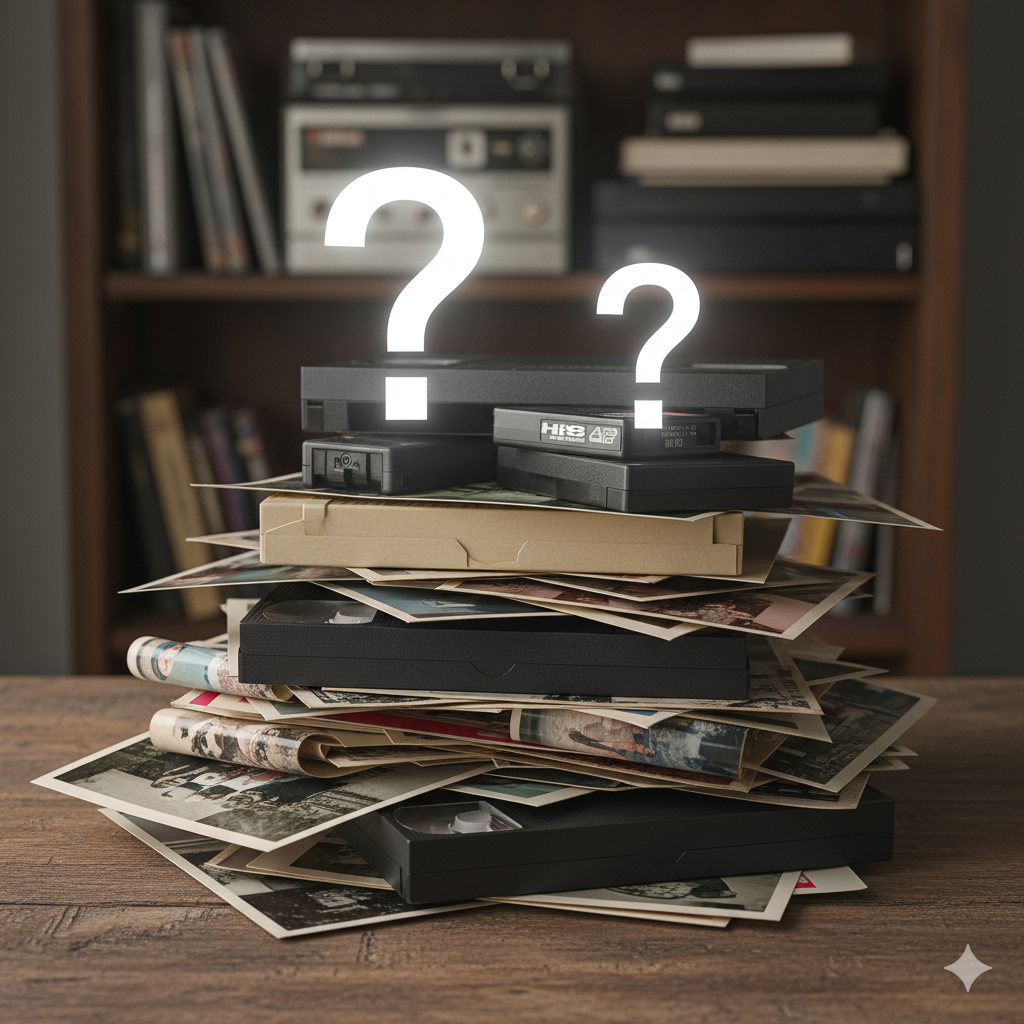
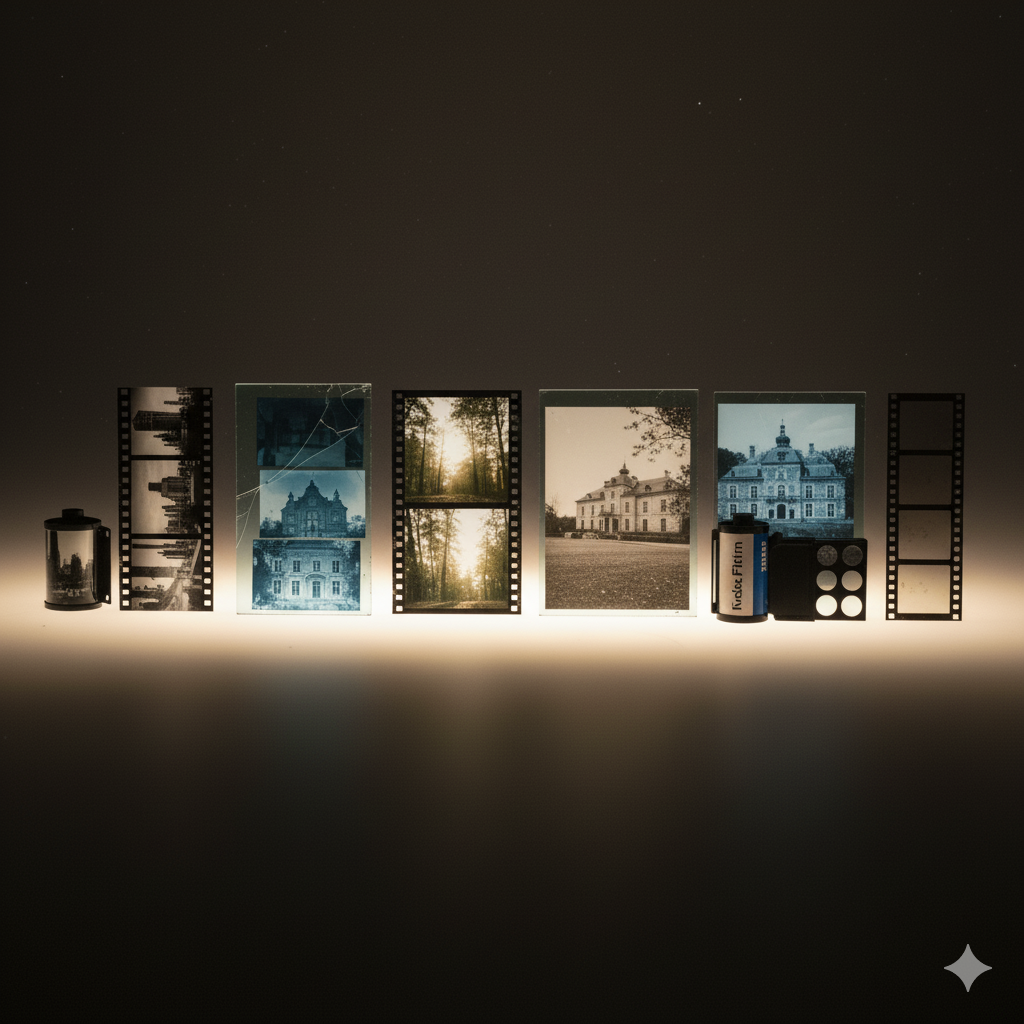
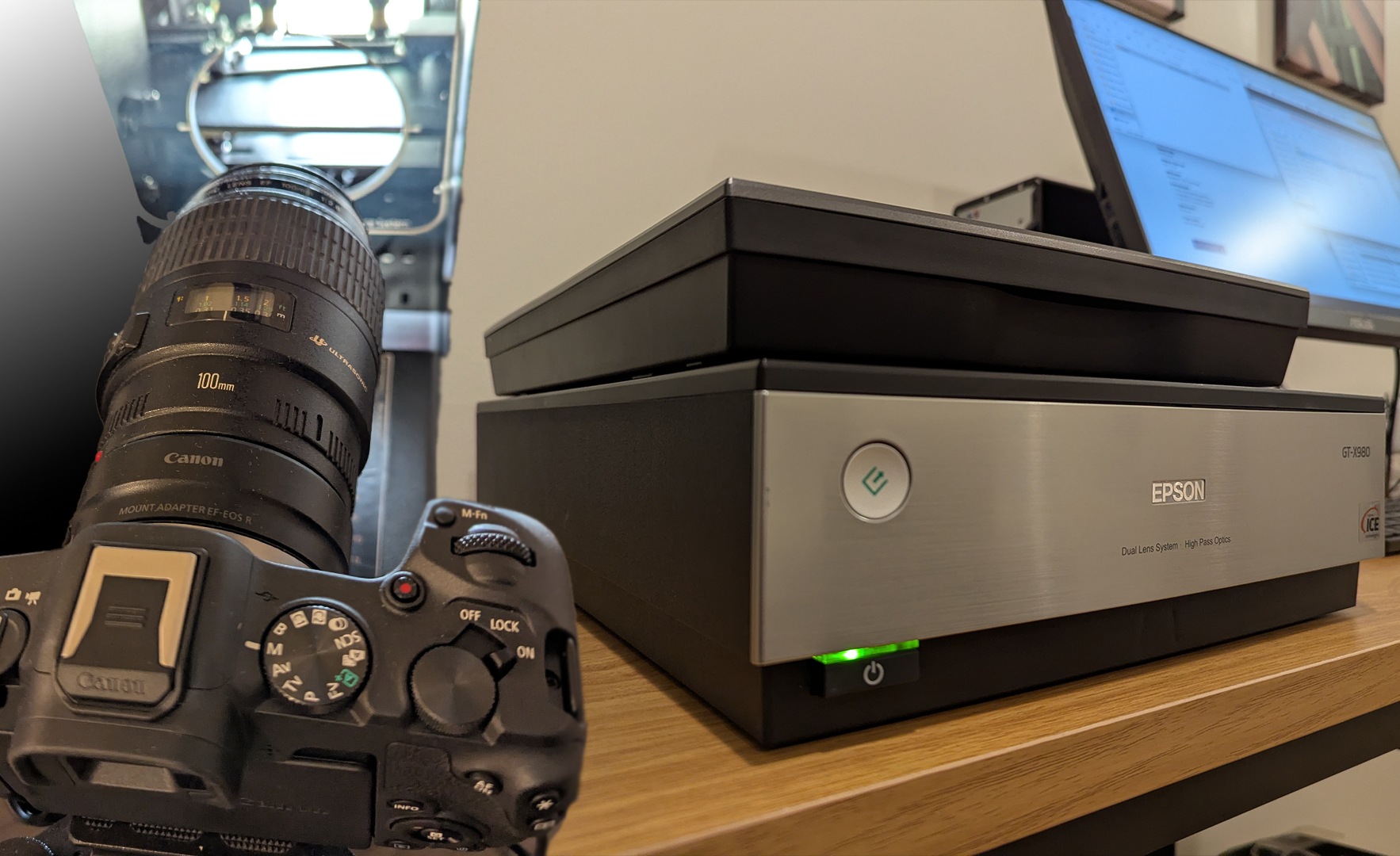
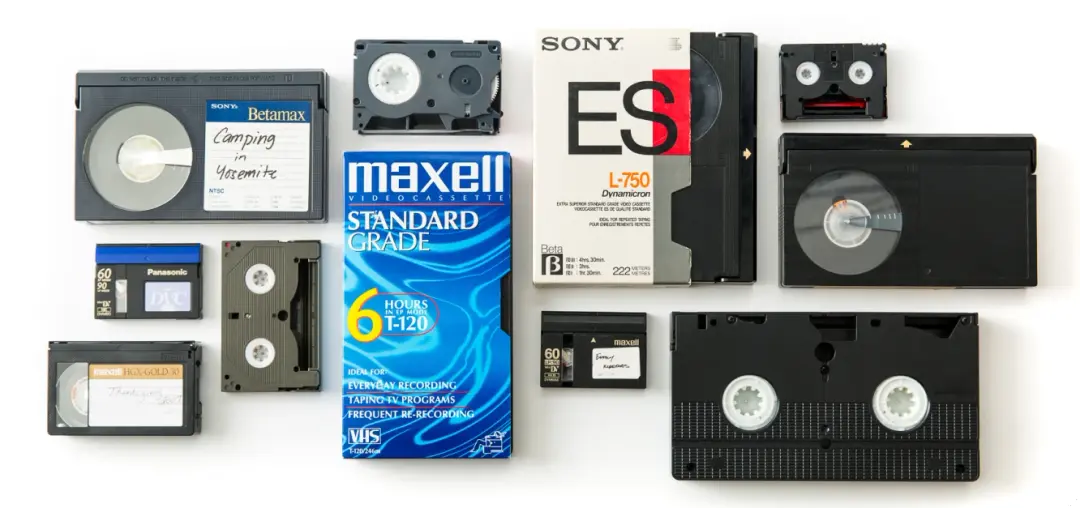
So now Scan5 has digitized your photos and you’re like most people, your phone is basically a portable memory bank. Vacations, screenshots, random memes, your dog doing something adorable. It all ends up in Google Photos.
But even though millions of people use it every day, most are only scratching the surface of what it can actually do.
In 2026, Google Photos has quietly become much more than a gallery app. It’s a powerful organizer, AI-powered search engine, backup system, editing studio, and memory archive all in one.
Here are the best tips, tricks, and lesser-known features that will help you get way more out of Google Photos.
1. Use AI Search Like a Superpower
One of the most underrated features in Google Photos is its AI-powered search.
You don’t have to remember dates or album names anymore. Just type what you remember.
Examples that actually work:
- “beach sunset”
- “red car”
- “birthday cake”
- “dog in snow”
- “Chicago skyline”
- “passport”
- “whiteboard notes”
Google’s AI recognizes objects, places, animals, text, and people, so it can surface photos instantly, even from years ago.
Pro tip:
You can also search inside screenshots because Google Photos can read text in images.
Example:
Search “wifi password” and it might pull up a screenshot you took months ago.
2. Turn On Face Grouping (If You Haven’t)
Face grouping is one of the best organization tools in Google Photos.
Once enabled, the app automatically groups photos by people so you can see every picture of someone in one place.
Steps:
- Go to Photos Settings
- Tap Privacy
- Enable Face Grouping
Then you can:
- Name people (Mom, Alex, etc.)
- See automatic collections
- Create albums based on faces
It’s incredibly useful when you want to pull together photos of a specific person over time.
3. Create Shared Albums for Trips or Events
Instead of texting photos back and forth, create a shared album.
Example use cases:
- Family vacations
- Weddings
- Group trips
- Birthday parties
- School events
Anyone with the link can:
- Add their photos
- Comment
- Download pictures
It turns Google Photos into a collaborative memory space.
4. Use the “Locked Folder” for Private Photos
Not every photo belongs in your main gallery.
Google Photos includes a Locked Folder feature that hides selected photos behind authentication such as fingerprint, Face ID, or a PIN.
Good uses for it:
- Sensitive documents
- Personal photos
- IDs and passports
- Financial screenshots
Once moved to the locked folder:
- They don’t appear in the main gallery
- They won’t show in Memories
- Other apps can’t access them
5. Use “Memories” to Rediscover Old Photos
Google Photos automatically surfaces old pictures as Memories.
But in 2026, it’s smarter than ever.
It can now generate:
- Travel highlights
- Pet collections
- Year-in-review stories
- Event recaps
You can also customize Memories by:
- Hiding certain people
- Removing specific dates
- Saving favorite memories
This helps avoid awkward reminders like old relationships.
6. Clean Up Your Storage Automatically
Photos pile up fast.
Instead of manually deleting things, use Manage Storage.
Google Photos can automatically identify:
- Blurry photos
- Large videos
- Screenshots
- Duplicate photos
Then you can remove them in seconds.
Steps:
- Tap your profile icon
- Tap Manage Storage
- Review suggested cleanups
Most people recover several gigabytes instantly.
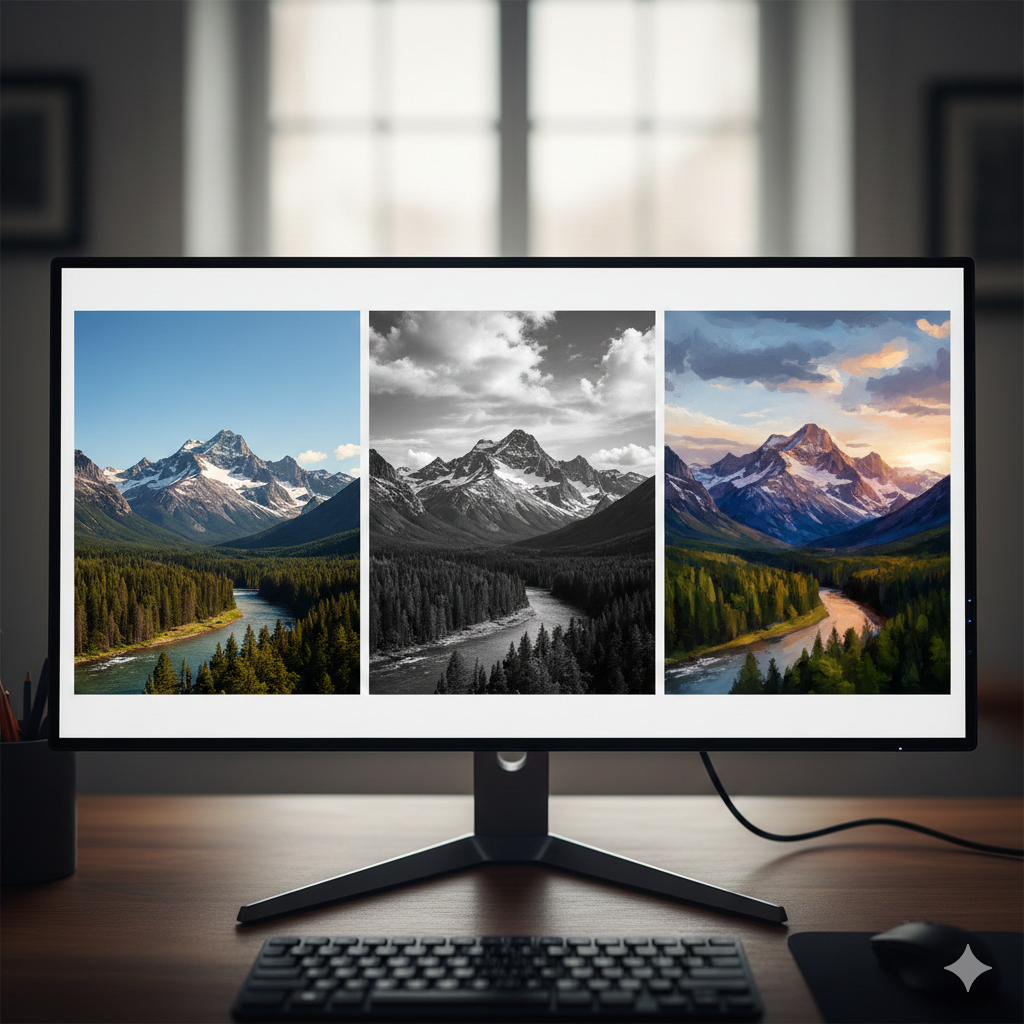
7. Use Magic Editor and AI Editing Tools
Google Photos editing tools have gotten extremely powerful.
The Magic Editor and other AI editing tools can now do things that previously required Photoshop.
You can:
- Remove people or objects
- Move subjects in a photo
- Expand the background
- Improve lighting automatically
- Fix blurry images
A quick tap can turn a decent photo into a great one.
Example fixes:
- Remove photobombers
- Fix shadows on faces
- Center a subject
- Improve sky color
8. Use the “Archive” Feature Instead of Deleting
Sometimes you want to hide photos without deleting them.
That’s where Archive helps.
Photos in Archive:
- Stay backed up
- Don’t appear in your main photo feed
- Still appear in search results
Great things to archive:
- Receipts
- Documents
- Random screenshots
- Temporary photos
It keeps your main feed clean while preserving the images.
9. Turn on Automatic Backup (The Most Important Feature)
If you do nothing else, turn on Backup.
This ensures your photos are saved even if your phone is:
- Lost
- Stolen
- Damaged
- Upgraded
Steps:
- Open Google Photos
- Tap your profile icon
- Turn on Backup
Your photos will automatically sync to your Google account.
This is the single most important safety net for your memories.
10. Favorite Your Best Photos
The little star icon is more useful than people realize.
When you favorite photos:
- They appear in a special Favorites album
- They’re easier to find later
- They’re often prioritized in Memories
A quick habit of starring your best photos makes finding them much easier later.
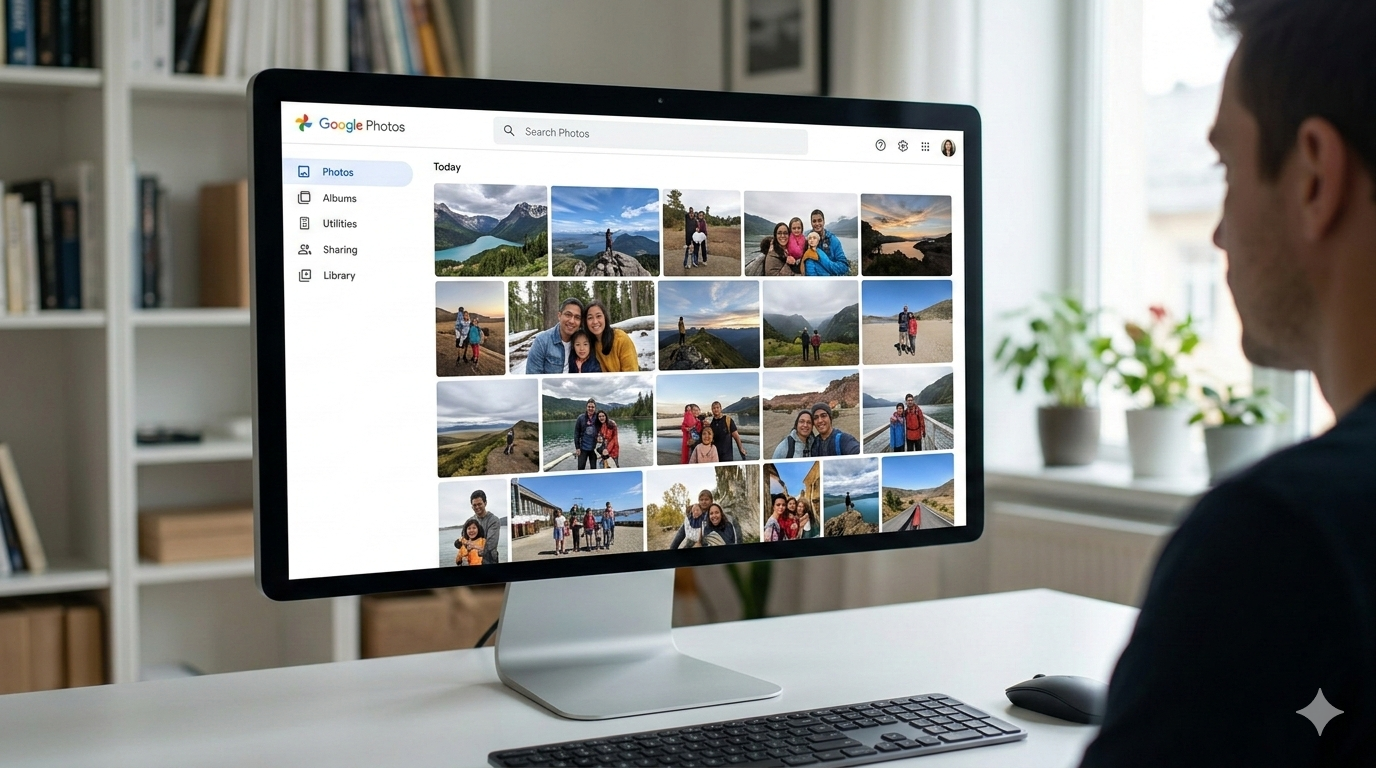
11. Use Google Photos on Desktop
Most people only use Google Photos on their phone.
But the desktop version is incredibly useful.
You can:
- Drag-and-drop uploads
- Download full albums
- Organize photos faster
- Edit on a larger screen
It’s especially helpful for organizing years of photos at once.
Final Thoughts
Google Photos has quietly become one of the most powerful everyday apps people use.
What started as a simple photo backup service is now a full AI-powered memory manager.
If you take advantage of its smarter search, AI editing tools, storage cleanup features, and sharing options, it can save you hours of time and make your photo collection far easier to manage.
And the best part?
Most of these features are already built in. You just have to know where to look.
If you start with just three habits, AI search, shared albums, and automatic backup, you’ll already be using Google Photos better than most people in 2026.