How to Use Google Drive to Back Up Your Photos and Videos
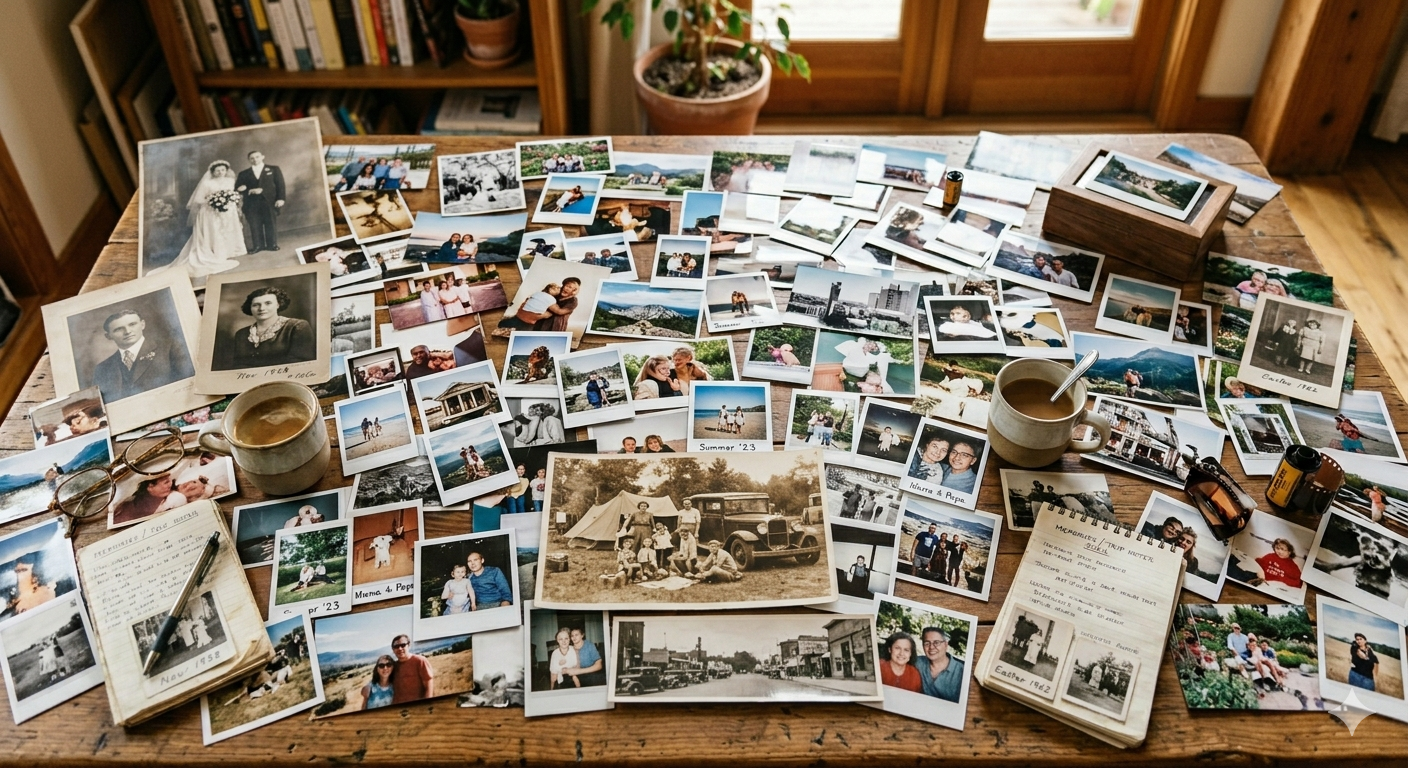
Your photos and videos capture life's most important moments, from family vacations and birthdays to business events and everyday memories. Unfortunately, a lost phone, failed hard drive, or accidental deletion can make those memories disappear in an instant.
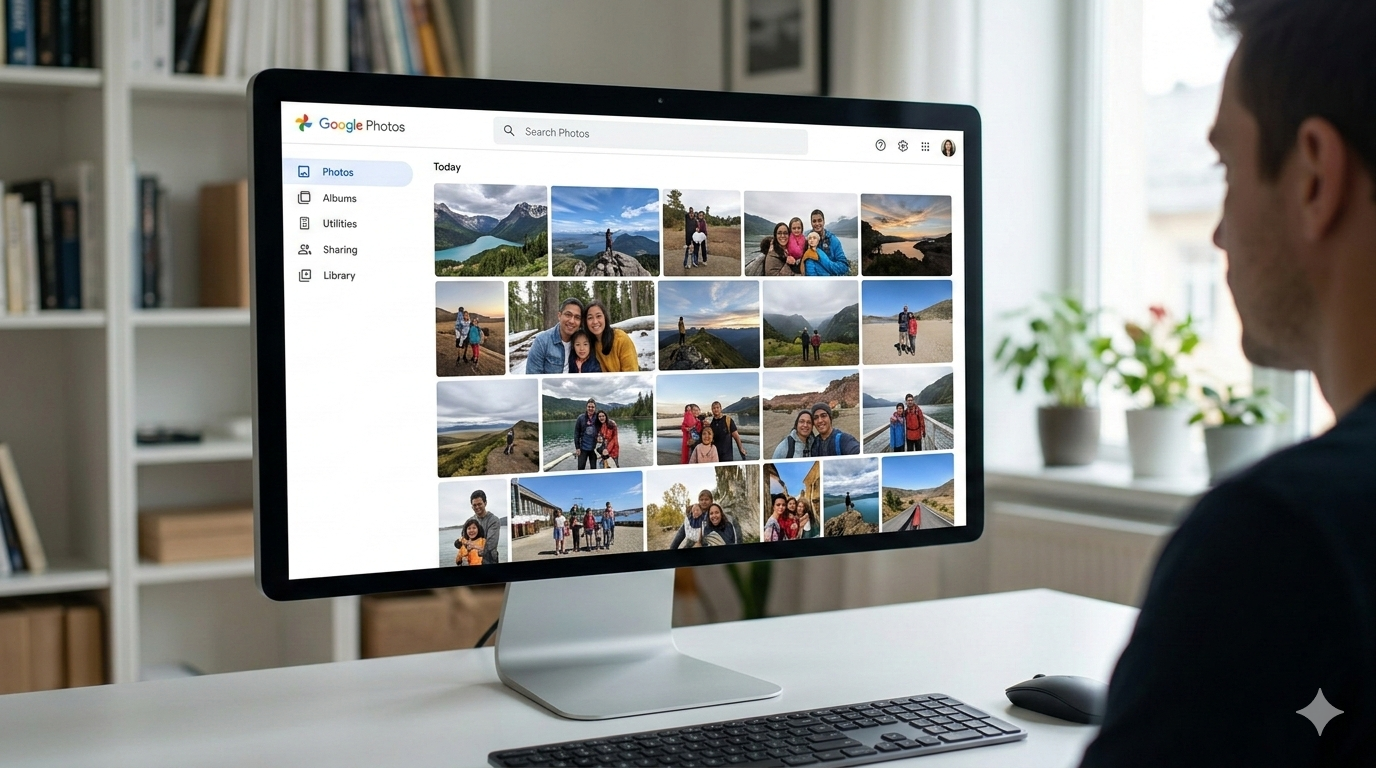
One of the easiest and most reliable ways to protect your media is by backing it up to Google Drive. In this guide, we'll show you how to set up automatic backups and explain why cloud storage should be part of your overall backup strategy.
Why Back Up Your Photos and Videos?
Many people assume their files are safe because they're stored on a phone or computer. In reality, devices can be lost, stolen, damaged, or simply stop working.
Regular backups help you:
- Protect irreplaceable memories
- Recover files after hardware failure
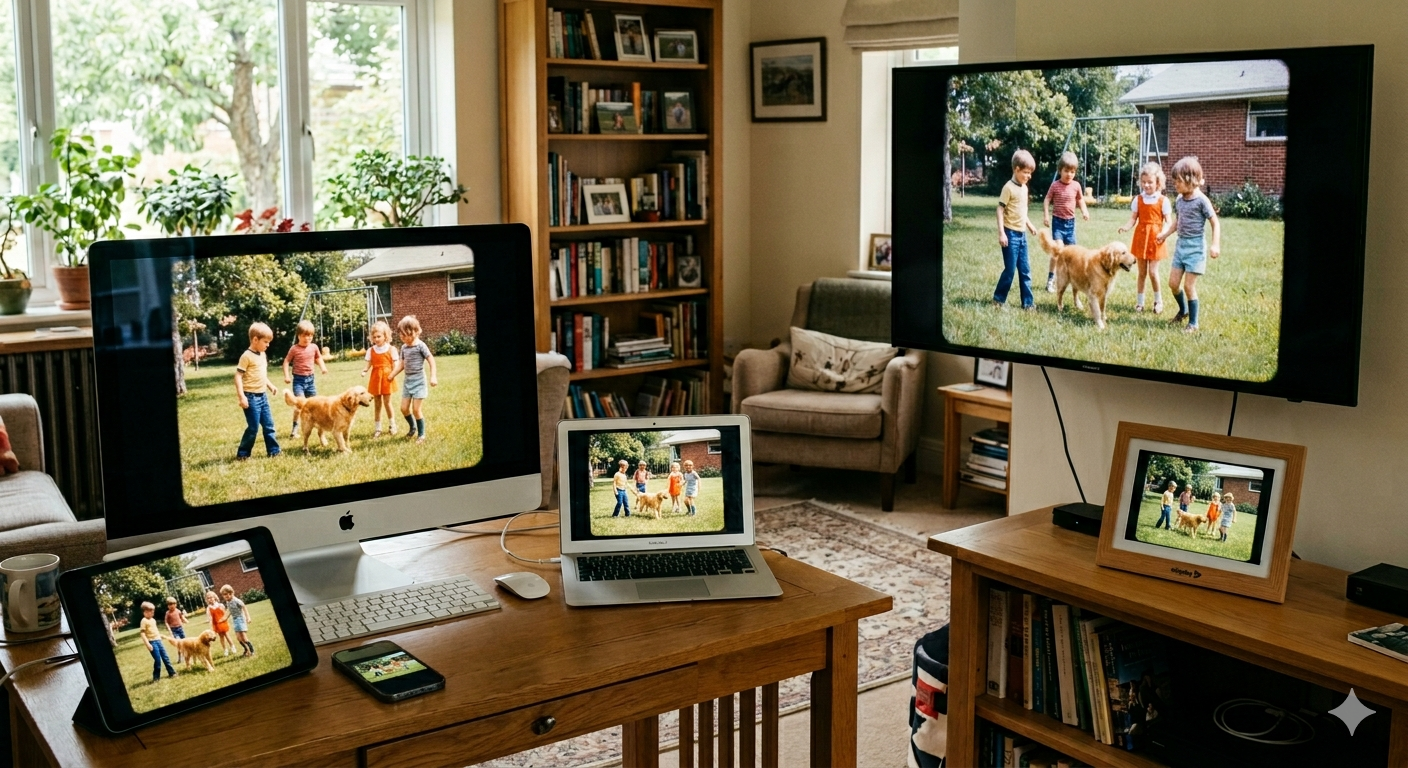
- Access your photos and videos from multiple devices
- Free up storage space on your phone or computer
- Share files easily with family, friends, or coworkers
What Is Google Drive?
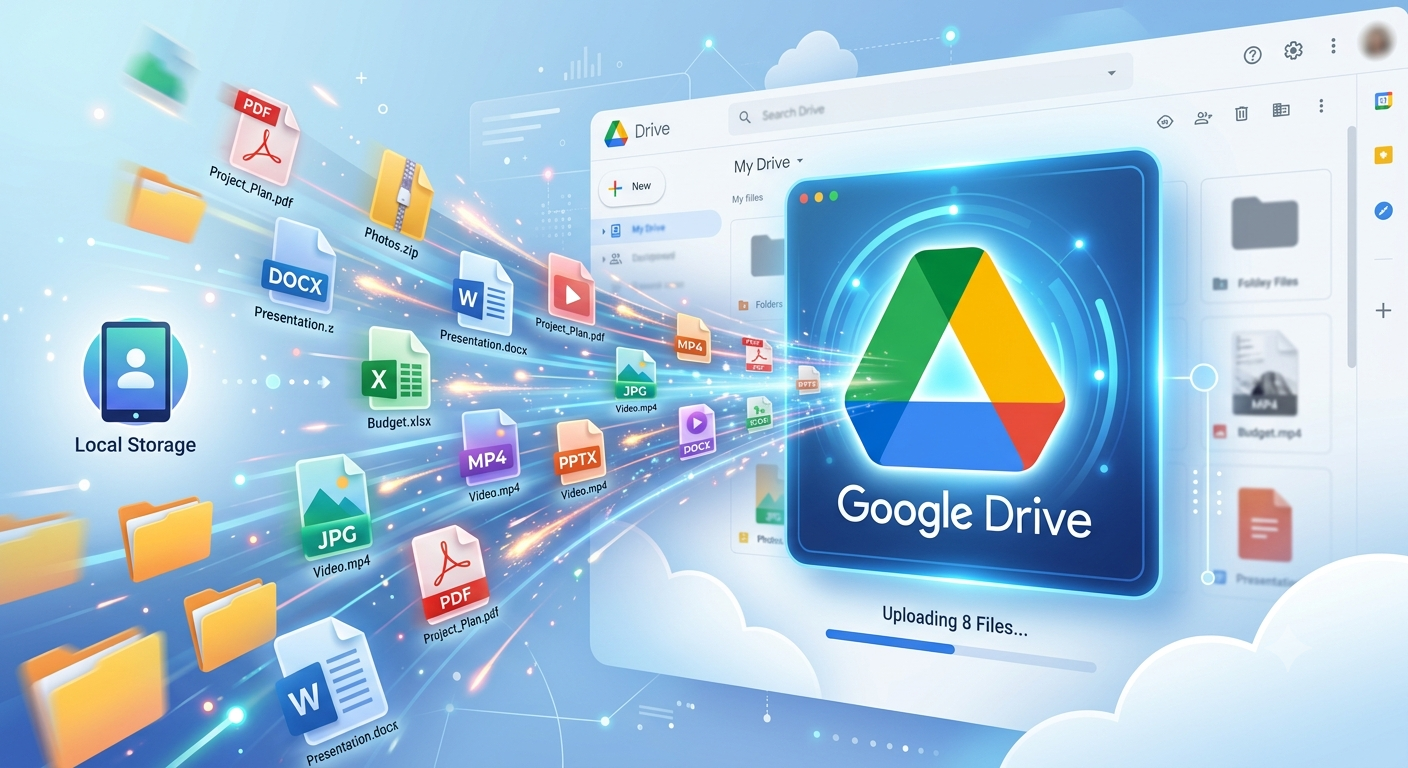
Google Drive is Google's cloud storage service that allows you to securely store files online and access them from almost anywhere. Your Google account includes 15 GB of free storage shared across Google Drive, Gmail, and Google Photos, with larger storage plans available through Google One.
Option 1: Back Up Photos from Your Smartphone
The easiest way to protect photos and videos taken with your phone is to enable automatic backups.
On Android
- Open the Google Photos app.
- Tap your profile picture.
- Select Photos settings.
- Tap Backup.
- Turn Backup on.
- Choose whether uploads occur over Wi-Fi only or mobile data.
Once enabled, every new photo and video is automatically uploaded when your device is connected.
On iPhone
- Install the Google Photos app from the App Store.
- Sign in with your Google account.
- Allow access to your photo library.
- Enable Backup during setup or from the app's settings.
Your photos and videos will automatically upload to your Google account.
Option 2: Back Up Photos from Your Computer
If you keep photos and videos on your Windows PC or Mac, Google Drive can automatically sync selected folders.
Install Google Drive for Desktop
- Download and install Google Drive for Desktop.
- Sign in using your Google account.
- Open the Google Drive settings.
- Select Add Folder.
- Choose the folders containing your photos and videos.
- Select whether to sync them to Google Drive or Google Photos.
Once configured, any new files added to those folders will upload automatically.
Organize Your Media
Keeping your backups organized makes it easier to find files later.
Consider:
- Creating folders by year
- Separating vacations, holidays, and family events
- Giving folders descriptive names
- Removing duplicate files occasionally
A little organization now can save hours of searching later.
Check Your Available Storage
Google accounts include 15 GB of free storage, which can fill up quickly if you record a lot of videos.
If you begin running out of space, you can:
- Delete unnecessary files
- Compress large videos if appropriate
- Upgrade to a Google One storage plan
Monitoring your available storage helps ensure your backups continue without interruption.
Is Google Drive Enough?
Cloud storage is an excellent first step, but it's best used as part of a complete backup strategy.
Technology professionals often recommend the 3-2-1 backup rule:
- Keep 3 copies of your important files.
- Store them on 2 different types of media.
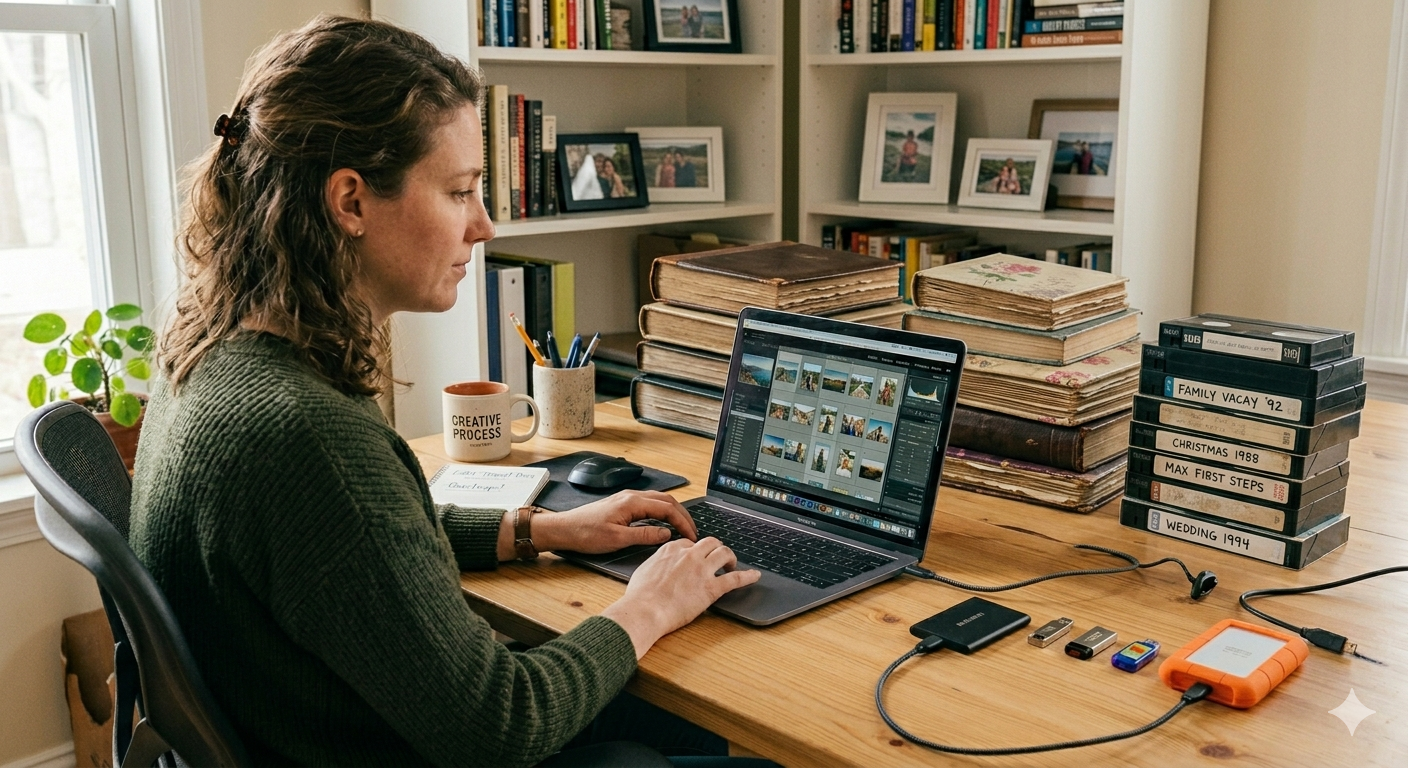
- Keep 1 copy off-site, such as in the cloud.
For example:
- Original files on your phone or computer
- A backup on an external hard drive
- A backup in Google Drive
This approach provides protection against accidental deletion, hardware failure, theft, and disasters.
Common Backup Mistakes to Avoid
Even with cloud storage, it's easy to overlook a few important details.
Avoid these common mistakes:
- Waiting until your phone is full before enabling backups
- Assuming every folder is backed up automatically
- Never checking whether backups are completing successfully
- Keeping only one copy of important files
- Ignoring storage limits
Review your backup settings every few months to make sure everything is still working properly.
Final Thoughts
Backing up your photos and videos doesn't have to be complicated. Google Drive provides an easy way to protect your files automatically, giving you peace of mind that your memories are safe even if something happens to your device.
At Scan5, we encourage everyone to develop good backup habits. Whether you're protecting family photos or important business media, a reliable backup strategy today can prevent costly data loss tomorrow.